How to Create a Signal
Signals are webhook endpoints that receive trading alerts and can trigger trades across multiple bots. Each signal has a unique webhook URL that you'll connect to your signal provider or trading strategy.
Creating a New Signal
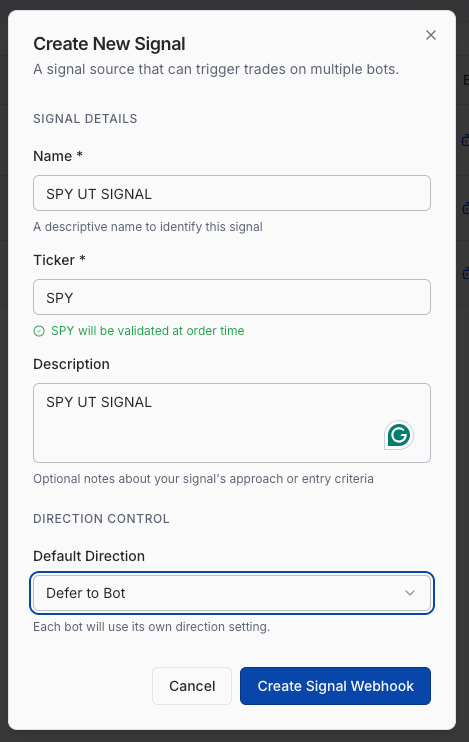
From the Signal Library page, click the + New Signal button in the top right corner. This opens the Create New Signal dialog where you'll configure your signal source.
Signal Details
Start by giving your signal a descriptive name that helps you identify its purpose. For example, "SPY 0DTE Momentum" or "TSLA Breakout Signal" makes it clear what strategy this signal represents.
Next, enter the ticker symbol for the underlying asset. RelayDesk validates this ticker when orders are placed, so make sure you use the correct symbol format (e.g., SPY, NVDA, AAPL). You'll see a green confirmation message when the ticker is recognized.
The description field is optional but useful for documenting your strategy's approach or entry criteria. This helps you remember the signal's purpose when managing multiple strategies.
Direction Control
The Default Direction setting determines whether this signal generates calls, puts, or defers to individual bot settings. Choose from three options:
Defer to Bot lets each connected bot use its own direction setting. This is useful when you want the same signal to trigger different directions across multiple bots.
Calls Only forces this signal to only generate call orders, regardless of bot settings. Use this when your signal specifically identifies bullish setups.
Puts Only forces this signal to only generate put orders, regardless of bot settings. Use this when your signal specifically identifies bearish setups.
After Creation
Once you click Create Signal Webhook, your new signal appears in the Signal Library with 0 signals received and 0 bots connected. The webhook URL is automatically generated and ready to use. You can copy this URL from the Actions menu to connect it to your signal provider.
Each signal operates independently, so you can create multiple signals for different strategies, timeframes, or underlying assets. Connected bots will only execute trades when they receive valid signals through the webhook.

Related Articles
How to Edit a Signal
You can modify your signal's settings at any time without affecting its webhook URL or connected bots. This lets you update strategy details, change direction settings, or adjust the ticker symbol as your trading approach evolves.
How to Archive a Signal
Archiving removes a signal from your active Signal Library without permanently deleting its history. This keeps your workspace clean while preserving the signal's data for future reference or restoration.
Was this article helpful?