How to Create a Bot
Build automated trading strategies in RelayDesk. Configure entry rules, exit strategies, risk management, and position sizing for your options trading bots.
Bots are automated trading strategies that execute trades based on signals, schedules, and risk parameters you configure. Each bot connects to your broker account and operates independently with its own risk controls and position sizing.
Getting Started
From the Bot Management page, click the + New Bot button in the top right corner. This opens the bot creation interface where you'll configure your trading strategy across several sections.
Quick Start Presets
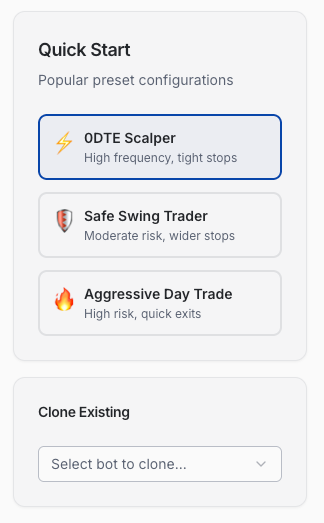
RelayDesk offers three preset configurations to help you get started quickly:
0DTE Scalper is designed for high-frequency trading with tight stop losses. This preset targets zero-day-to-expiration options with rapid entries and exits, making it suitable for active intraday strategies.
Safe Swing Trader takes a more conservative approach with moderate risk parameters and wider stop losses. This preset works well for strategies that hold positions across multiple days with less frequent trading.
Aggressive Day Trade balances higher risk tolerance with quick exit strategies. This preset suits traders looking for larger potential gains while accepting increased downside risk.
You can also clone an existing bot if you want to duplicate a configuration you've already built. Select the bot from the dropdown and all settings will pre-populate, letting you make adjustments without starting from scratch.
Bot Basics
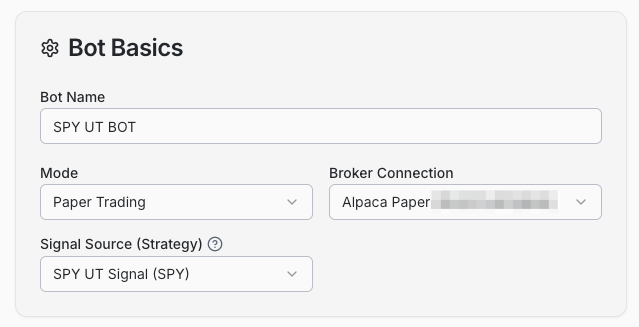
Start by naming your bot something descriptive that identifies its strategy or purpose. Clear names like "SPY 0DTE Scalper" or "NVDA Swing Trader" help you manage multiple bots effectively.
The Mode setting determines whether the bot trades with real money or simulates trades on paper. Choose Paper Trading to test your strategy without risking capital, or switch to live trading once you've validated your approach.
Select your Broker Connection from the dropdown. You must have a broker connected in your account settings before you can activate a bot for live trading.
The Signal Source (Strategy) field connects your bot to a signal from your Signal Library. This determines which webhook triggers trades for this bot. If you haven't created a signal yet, you'll need to do that first in the Signal Library.
Strategy Setup
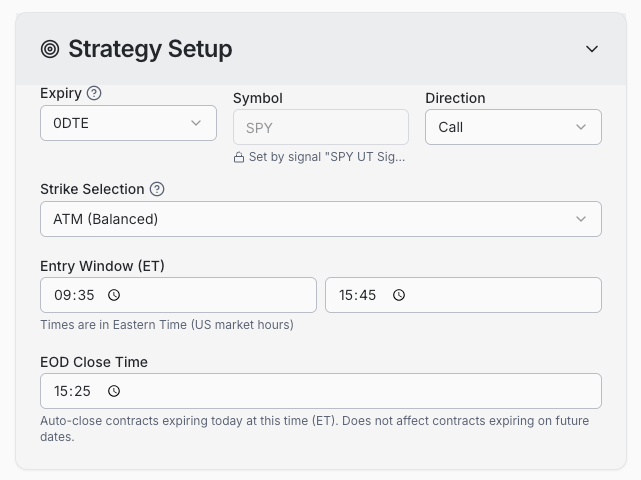
The strategy section defines what your bot trades and when it enters positions.
Expiry sets how far out your options contracts expire. 0DTE trades options expiring the same day, while longer expirations like 1DTE or weekly contracts give positions more time to develop.
Symbol is the underlying asset you're trading options on, like SPY, QQQ, or any other ticker. Make sure this matches what your signal provider sends.
Direction determines whether the bot trades calls, puts, or both. This works together with your signal's direction setting. If your signal is set to "Defer to Bot," this setting controls the direction. If your signal forces calls or puts, it overrides this setting.
Strike Selection determines which option contracts the bot buys. ATM (At the Money) keeps you close to the current price with balanced risk-reward. ITM (In the Money) provides lower risk but costs more, while OTM (Out of the Money) offers higher potential returns with increased risk of expiration worthless.
Entry Window defines the time window when your bot can enter new positions. This is set in Eastern Time to match US market hours. For example, setting 09:35 to 15:45 prevents entries during the volatile market open and near market close.
EOD Close Time automatically closes any open positions at this time to avoid overnight risk or assignment. Set this before market close if you only want intraday positions. This setting applies to contracts expiring today and won't affect longer-dated positions.
Position Sizing
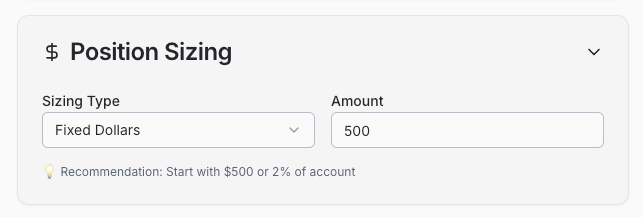
Position sizing controls how much capital each trade risks.
Sizing Type offers two options. Fixed Dollars allocates a specific dollar amount per trade regardless of account size. Percent of Account scales position size based on your total account value, which automatically adjusts as your account grows or shrinks.
Amount specifies either the dollar amount or percentage based on your sizing type. The interface shows a recommendation to help you size appropriately, typically suggesting $500 or 2% of your account as a starting point.
Exit Strategy
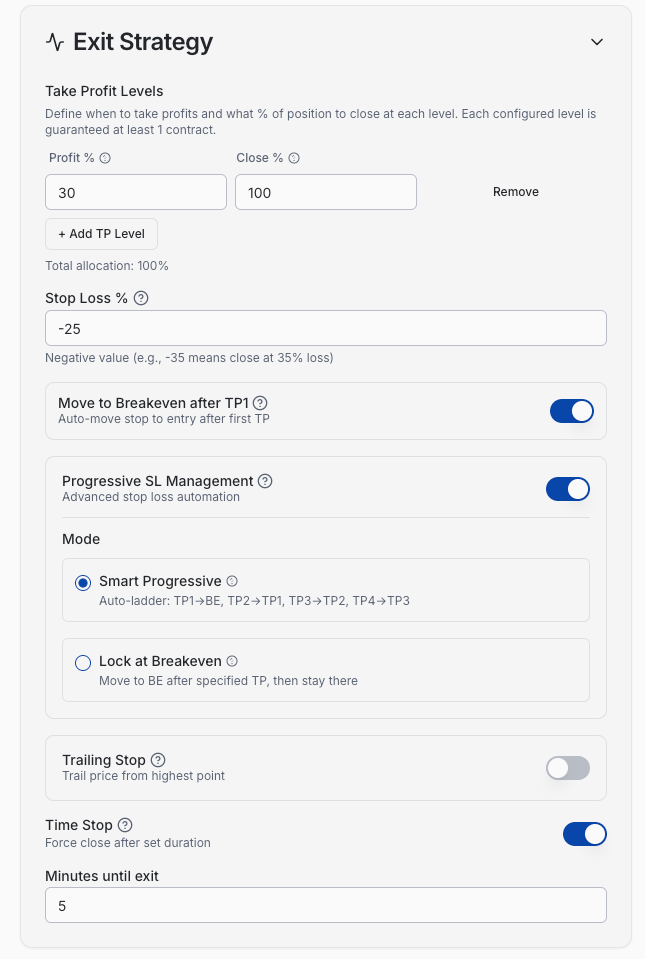
The exit strategy section defines when and how your bot closes positions.
Take Profit Levels let you scale out of winners by defining multiple profit targets. Each level specifies a profit percentage and what percentage of the position to close. For example, closing 50% at 30% profit and the remaining 50% at 50% profit locks in gains while leaving room for bigger winners. The interface requires at least two contracts minimum for all configured take profit levels.
Stop Loss % defines your maximum acceptable loss per trade. Enter this as a negative number like -35, which means the bot closes the position if it drops to 35% loss. This is your hard stop that overrides all other exit logic.
Move to Breakeven after TP1 automatically moves your stop loss to your entry price after the first take profit level hits. This converts winning trades into risk-free positions, protecting your profits.
Progressive SL Management is an advanced stop loss automation that dynamically adjusts your stop as the trade moves in your favor. This helps lock in profits while giving trades room to run.
Trailing Stop tracks price from its highest point and closes the position if price falls by the specified percentage. This captures gains during strong moves while exiting when momentum reverses.
Time Stop forces position closure after a set duration regardless of profit or loss. This prevents capital from being tied up too long in stagnant positions.
Risk Management
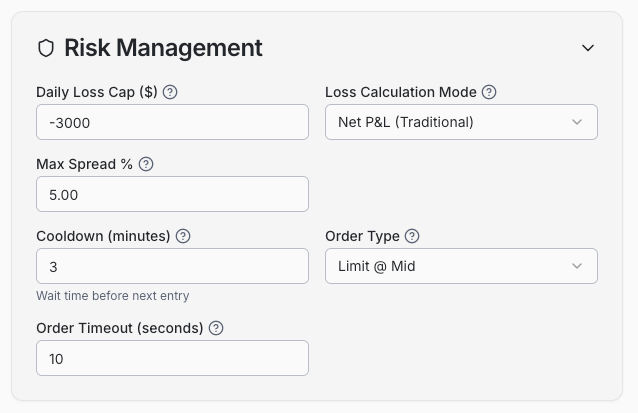
Risk management parameters protect your account from excessive losses.
Daily Loss Cap ($) stops all trading for the day once you've lost this dollar amount. Enter this as a negative number like -3000. Once hit, the bot won't take new signals until the next trading day.
Loss Calculation Mode determines how daily losses are calculated. Net P&L (Traditional) counts realized profits and losses together, so a winning trade offsets a losing trade. This is the standard approach for most traders.
Max Spread % rejects trades where the bid-ask spread exceeds this percentage of the mid price. This protects you from entering positions with poor liquidity where execution quality suffers.
Cooldown (minutes) sets a waiting period after each trade before the bot can take the next signal. This prevents overtrading and gives you time to assess market conditions between positions. Set to 0 to disable.
Order Type defines how orders are submitted to your broker. Limit @ Mid places orders at the midpoint of the bid-ask spread, balancing execution speed and price.
Order Timeout (seconds) cancels unfilled limit orders after this duration. If your order doesn't execute within the timeout period, it's automatically canceled to avoid stale orders.
Trading Schedule
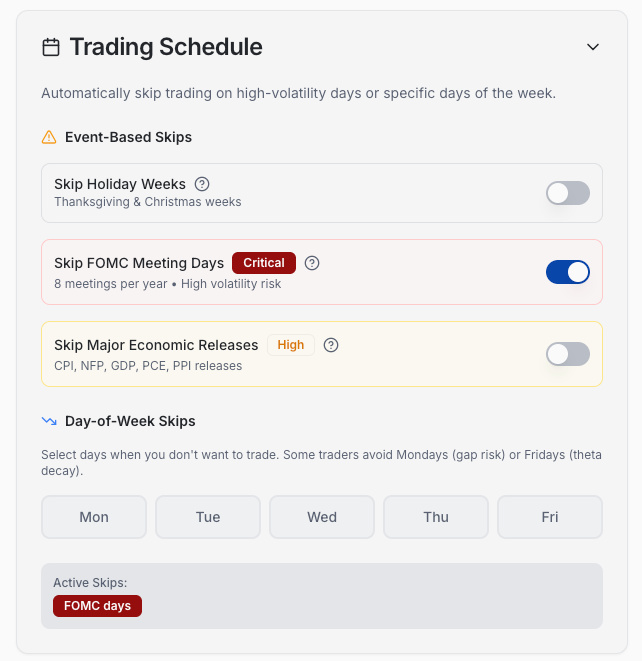
The trading schedule helps you avoid trading during unfavorable market conditions.
Event-Based Skips automatically pauses trading around scheduled market events that create volatility.
Skip Holiday Weeks disables trading during Thanksgiving and Christmas weeks when volume and liquidity are typically lower.
Skip FOMC Meeting Days prevents trading on the 8 Federal Reserve meeting days each year. These days typically see high volatility and unpredictable price action that can be difficult for systematic strategies.
Skip Major Economic Releases avoids trading around CPI, NFP, GDP, PCE, and PPI releases. These high-impact reports often create sudden market moves that trigger stops or cause poor fills.
Day-of-Week Skips lets you disable trading on specific weekdays. Some traders avoid Mondays due to gap risk from weekend news, or Fridays to avoid theta decay into the weekend. Select any days you want the bot to skip.
Setup Summary
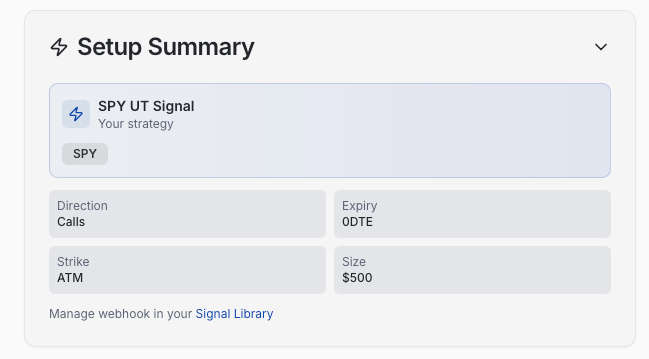
The setup summary shows your complete bot configuration at a glance, including your signal source, direction, expiry, strike selection, and position size. This gives you one final review before activating the bot.
The summary also provides a link to manage your webhook in the Signal Library, making it easy to verify your signal configuration.
Risk Profile and Validation
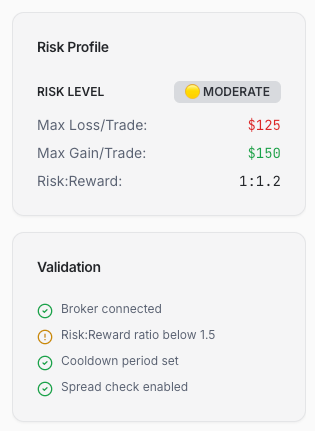
The right sidebar displays your bot's risk profile and validation status throughout the configuration process.
Risk Level categorizes your bot as low, moderate, or high risk based on your combined settings. This updates dynamically as you adjust parameters like stop loss, position sizing, and strike selection.
Max Loss/Trade and Max Gain/Trade show the dollar amounts at risk and potential profit per position based on your sizing and exit strategy.
Risk:Reward displays the ratio between your potential gain and maximum loss, helping you assess whether your strategy has favorable mathematics.
Validation checks that all required settings are properly configured. Green checkmarks indicate completed sections, while warnings highlight issues that need attention before you can activate the bot.
Smart Suggestions
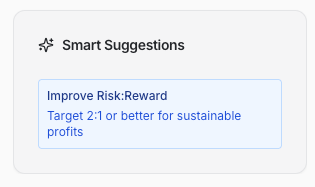
As you configure your bot, RelayDesk analyzes your settings and offers optimization suggestions in the Smart Suggestions panel. These recommendations appear based on your specific configuration and might suggest adding a cooldown period to reduce overtrading, or improving your risk:reward ratio for more sustainable profits.
You can apply suggestions with one click, or ignore them if they don't fit your strategy. These are recommendations, not requirements.
Saving Your Bot
Once you've configured all settings, you have two options at the bottom of the page:
Save as Draft stores your configuration without activating the bot. Use this when you want to finish setup later or if you're waiting for broker approval.
Save & Activate validates your configuration, saves the bot, and immediately begins listening for signals. The bot will execute trades as soon as it receives valid signals during your configured trading windows.
After activation, your bot appears in the Bot Management table where you can monitor its performance and make adjustments as needed.
Was this article helpful?